
Clear CDN Cache
The CDN cache stores frequently accessed static website assets, as well as some static pages, on the proxy server and delivers them from the Anycast network. It functions similarly to a traditional content delivery network (CDN), with one key difference – the cached content expires automatically.
The primary purpose of the CDN cache is to reduce load on the web server. By serving cached static content instead of generating responses for every request, proxy servers significantly reduce the number of requests reaching the origin server. As a result, page load times improve – both for cached content, which is delivered almost instantly, and for uncached content, as the web server has more resources available to process requests.
Cache-Related Considerations
Caching static pages can introduce issues when website content changes frequently. In such cases, an outdated cached version may be served instead of the most recent update. If you suspect the CDN cache is causing unexpected website behavior, perform the following check:
- Force a browser reload. Press
Ctrl+Shift+Rto reload the page without using the browser cache. - Bypass CDN Cache using a URL parameter. Append an arbitrary query parameter to the page URL. For example, if your page is at
https://yourdomain.tld, change it tohttps://yourdomain.tld?nocache. If your URL already contains parameters, add another using the&operator, for examplehttps://yourdomain.tld?page=cart&nocache. This approach bypasses the CDN cache in most cases. - Purge CDN Cache in the WGP dashboard. In the WGP dashboard, click Purge CDN Cache. This should remove all cached content.
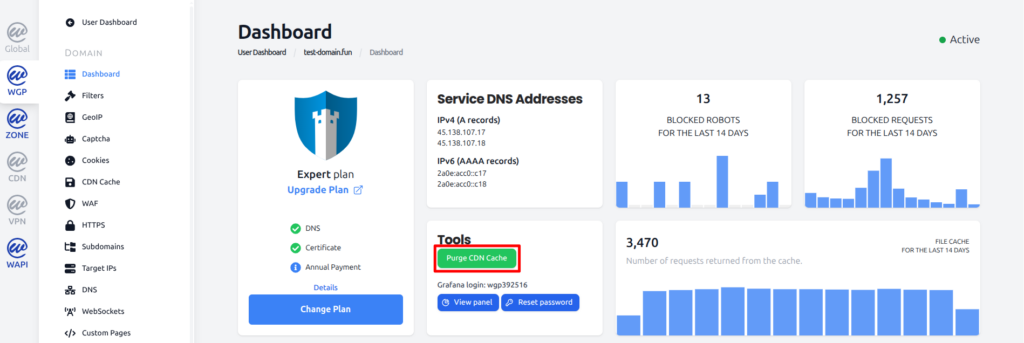
If the issue persists, it is likely not caused by either the browser cache or the CDN cache.
Disabling the CDN Cache
If caching is confirmed to be the source of the issue, the CDN Cache can be disabled in the WGP dashboard:
- Open the domain detail.
- Navigate to CDN Cache settings.
- Toggle the CDN Cache switch off.
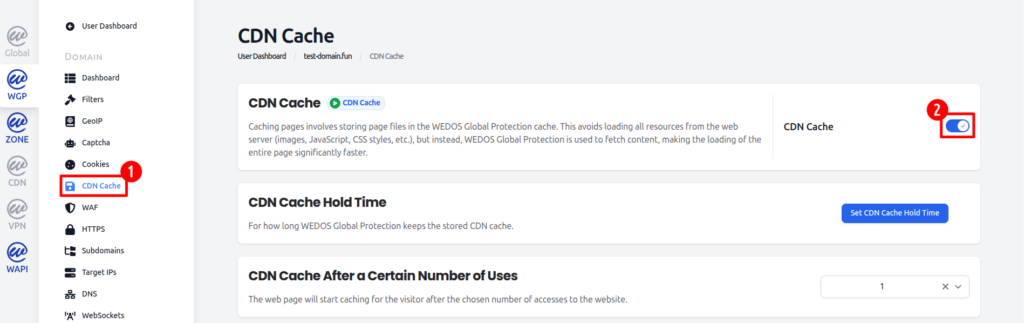
After you disable CDN Cache, the website should then load from the web server.