WEDOS NS
For optimal performance, WEDOS.protection works best when the domain uses WEDOS DNS servers and is added in WEDOS NS mode. This configuration ensures that all required DNS records remain accurate and up to date.
If your domain currently uses a different DNS provider but you intend to switch to WEDOS DNS, you can first add the domain using the WEDOS NS mode and then change providers by following the steps below.
When a domain is added in WEDOS NS mode, the system performs several automated checks to verify and prepare the DNS configuration.
DNS Record Scan
The system scans the domain for existing DNS records and displays the results.
If the domain already uses WEDOS DNS, the results of this scan are purely informative. If you changed your DNS provider to WEDOS DNS within the last 48 hours, make sure that the scan results are correct.
If the domain currently uses a different DNS provider, the system automatically creates a new WEDOS DNS zone file and populates it using the scan results. In this case, it is essential to carefully review the scanned records and verify their accuracy. Any missing or incorrect records should be corrected in the newly created WEDOS DNS zone file found in the ZONE tab of the WEDOS.global dashboard to ensure proper domain functionality.
Automatic DNS Update
After the DNS record scan is complete, you may see an alert which asks you to allow WEDOS.protection to automatically manage DNS record updates. This is optional but recommended. If you do not allow automatic updates then you will need to manually update the A and AAAA DNS records. If the WGP IP addresses change then your website may be down until you update the A and AAAA records.
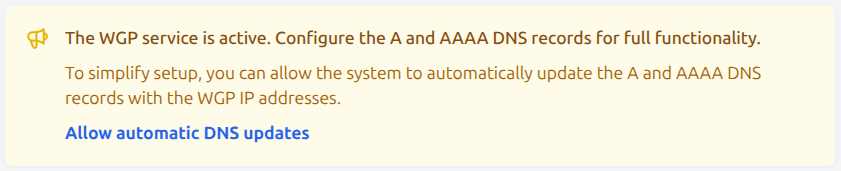
If this alert does not appear, the system cannot detect WEDOS nameservers for the domain, or automatic DNS updates are already enabled for the domain.
DNS Server Scan
The system also verifies that the domain is using WEDOS DNS servers. If it is not, you will be presented with instructions on how to update the domain’s nameservers.
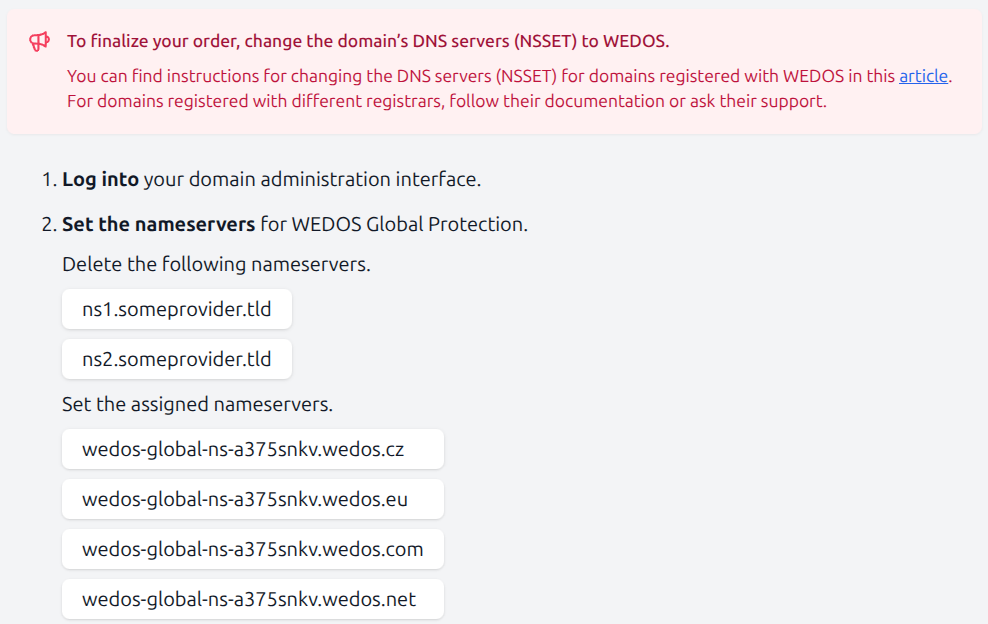
If this screen does not appear, the domain already uses WEDOS nameservers.
Finalize Setup
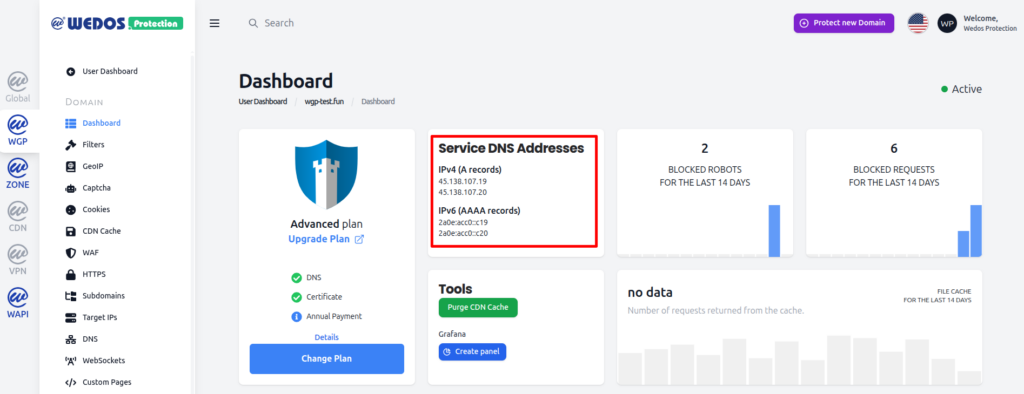
Once the system detects that the DNS servers have been updated, you will gain access to the domain dashboard. From there, you can review the domain’s assigned proxy IP addresses and verify that automatic DNS updates are functioning correctly.