
Cyber Attack First Response
When configured correctly, WEDOS.protection mitigates most attacks automatically. In some cases, however, attackers may use unconventional techniques, or circumstances may arise which would require manual intervention.
Prerequisites
Before analyzing malicious traffic or applying countermeasures in the WEDOS.protection dashboard, confirm that attackers cannot bypass the protection layer.
- DNS configuration. Ensure that the domain and all subdomains point exclusively to the proxy. DNS records must not contain the IPv4 or IPv6 addresses of the web server.

- Server configuration. Ensure that the web server is configured to accept traffic only from WEDOS.global IP addresses. Use the always up-to-date JSON list available at:
https://ips.wedos.global/ips.json.
Diagnostics
Unwanted website behavior may be the result of an attack, or it may be an unintended side-effect of your WEDOS.protection service setup.
Before attempting to diagnose a malfunctioning website or service, make sure to prepare the following:
- Multiple test devices. Use at least two separate devices on different networks (for example, a laptop on Wi-Fi and a mobile phone using a cellular connection). This helps rule out device- or network-specific issues. You can also use external monitoring or diagnostic services such as WEDOS.online.
- Browsers with cleared cache. Force a full reload using
Ctrl + Shift + Ror clear the browser cache manually. This ensures the browser does not display outdated content or cached error messages.
Common Symptoms and Likely Causes
- Slow or unresponsive website. Unfiltered DDoS attacks are likely to slow down your website. The traffic will appear in Grafana logs, and you can manually fine-tune filters according to the data.
- Challenge pages. Challenge pages are either set permanently for specific URLs, which are frequent attack targets (such as WordPress login pages), or deployed by the system when an attack is in progress.
- Content update problems. The CDN cache plays an important role in reducing server load, but might be undesirable for certain types of pages, especially those with frequently changing content.
- Error messages. Error responses such as 403, 404, 500, or 503 indicate a problem with the web server, a backend resource, or the WEDOS.protection service itself.
Troubleshooting
If all test devices show the same behavior, the issue likely originates from either the proxy or the web server. Start by determining which component causes the problem.
Content Update Issues
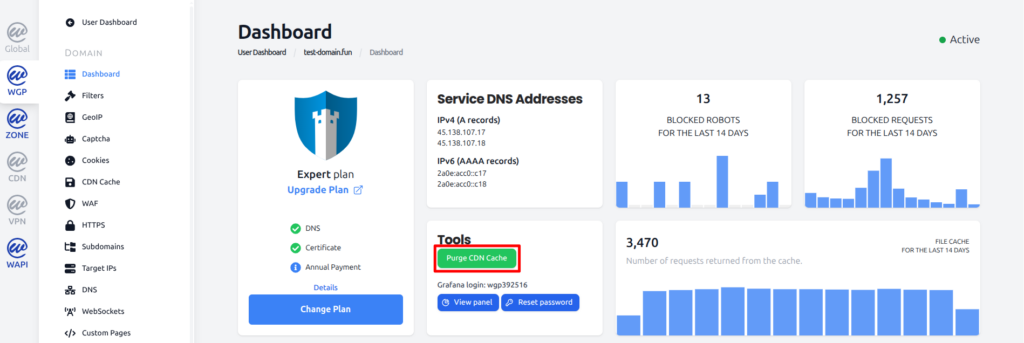
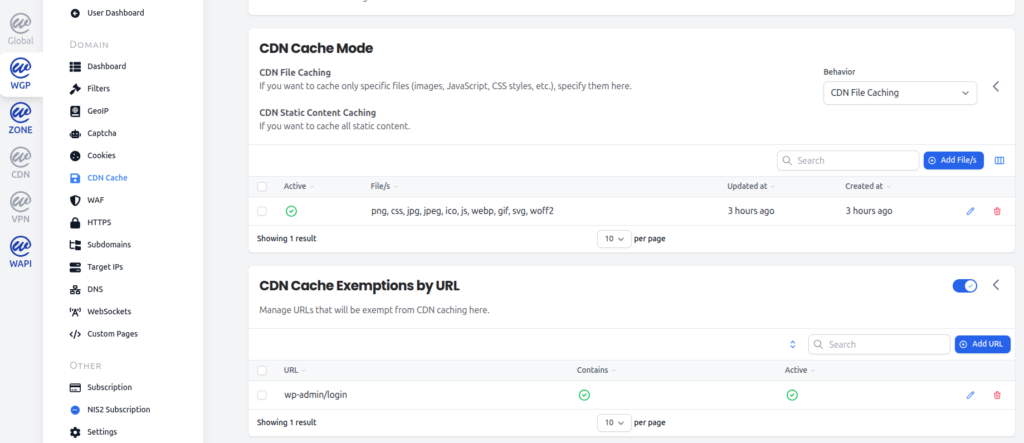
If your website is experiencing content update problems (including stuck web server error messages, typically 404 pages), open the WGP dashboard and navigate to the domain’s CDN cache settings:
- Cached error or maintenance message. If the problem is a single cached page, such as an error or maintenance message, clear (purge) the CDN cache.
- Persistent content update issues. If caching disrupts your website performance in general, switch the Cache Mode to File Caching, or set up CDN Cache Exemptions by URL.
Performance Issues and Challenge Pages
If your website is slow or unresponsive, or you are experiencing problematic challenge pages:
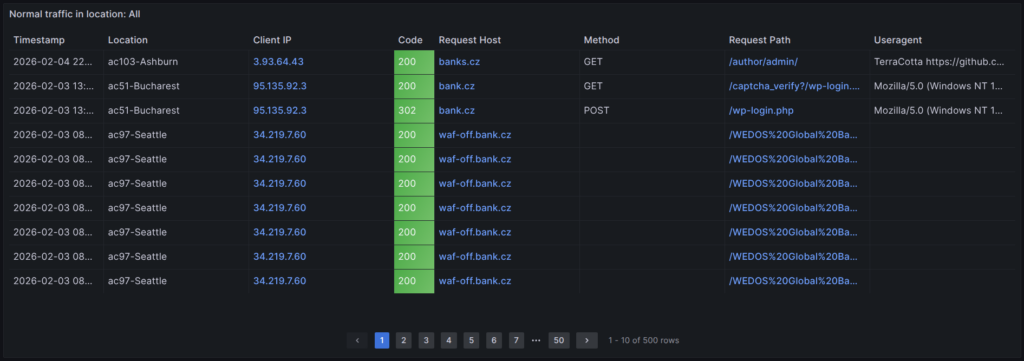
- Start by checking the logs in Grafana. If there are unblocked requests from illegitimate sources, identify what they have in common, such as IP address, geographic region, ASN or User Agent, and use Filters or GeoIP to block them.
- If there is a high volume of traffic, but no clear threat, the system may start challenging visitors with Captcha, Turnstiles or similar challenges. These should switch off automatically when the traffic decreases below a certain level.
Note that not all filtered traffic appears in Grafana logs. Large L3/L4 attacks generate extremely high volumes of requests, so the system logs aggregated traffic metrics instead of individual requests.
Resolution
Cyberattacks require significant resources from both attackers and target systems. When attackers determine that their efforts are ineffective, they typically abandon the attack within a short period.