
GeoIP
GeoIP allows you to control how traffic from different geographic locations interacts with the website. By applying rules based on a visitor’s country or region, WEDOS.protection helps reduce unwanted traffic, limit exposure to high-risk areas, and apply additional security measures where needed.
GeoIP filtering works at the proxy level, ensuring that decisions are made before traffic reaches the web server.
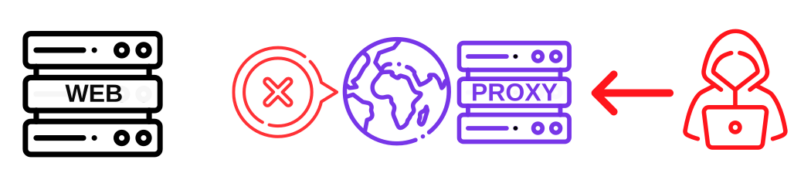
GeoIP is enabled in AI Mode by default, which adjusts filtering rules in real time using global threat intelligence – detecting sudden geographic spikes in malicious activity and tightening controls without affecting legitimate traffic.
AI Mode is always active and cannot be disabled. Start and Advanced plans use AI Mode only, while users with an Expert subscription plan or higher can add Custom GeoIP rules on top of AI protection for additional control.
Accessing GeoIP in the Dashboard
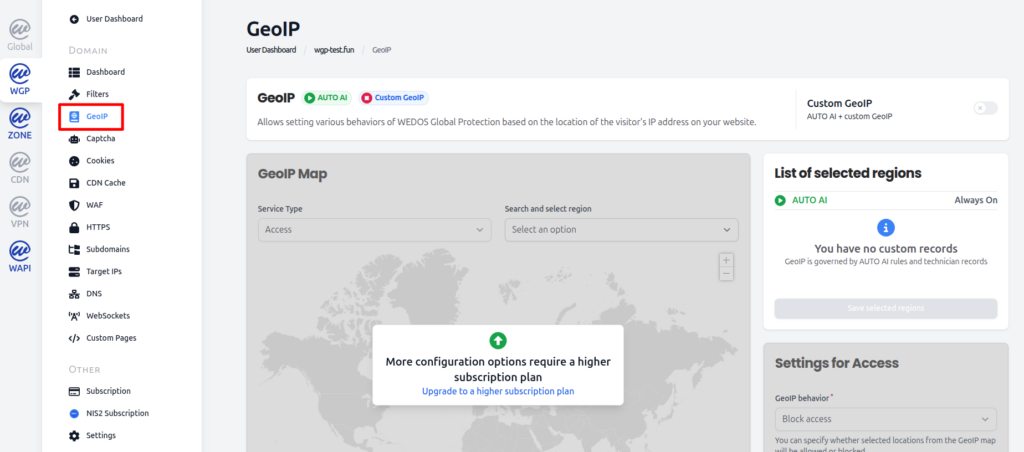
To manage GeoIP in the WGP dashboard, select a domain and then navigate to GeoIP under the Domain details.
How Custom GeoIP Works
Users with an Expert subscription plan or higher can enable Custom GeoIP and manage rules in these three categories or Service Types:
- Access. Allow or block access by state or continent.
- Captcha. Require captcha challenge by state or continent.
- Cookies. Require cookie verification by state or continent.
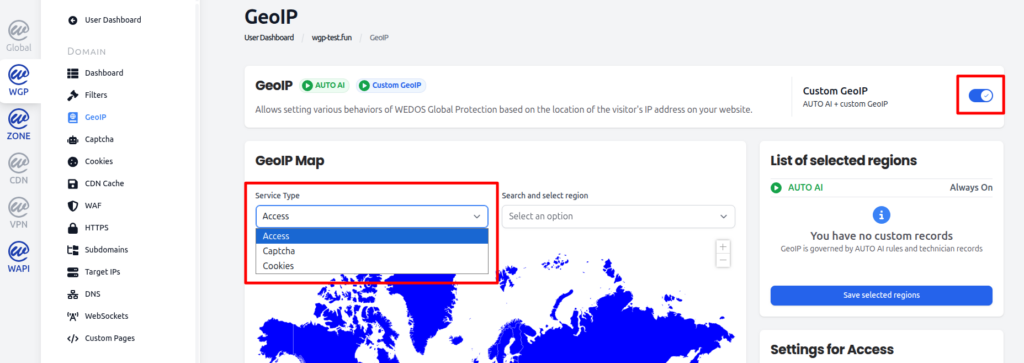
You can enable and manage any combination of Service Types according to your needs.
Access Service Type
The Access Service Type works by either blocking access from selected states or continents, or by allowing access only for selected states and continents.
For example, if you run an eshop that only ships orders within your state, and you are not interested in people outside your state having access to your website, then you would use Allow access GeoIP behavior and select just your state. By doing this you are restricting access to regions where you do not operate while at the same time permitting traffic within your state without restriction.
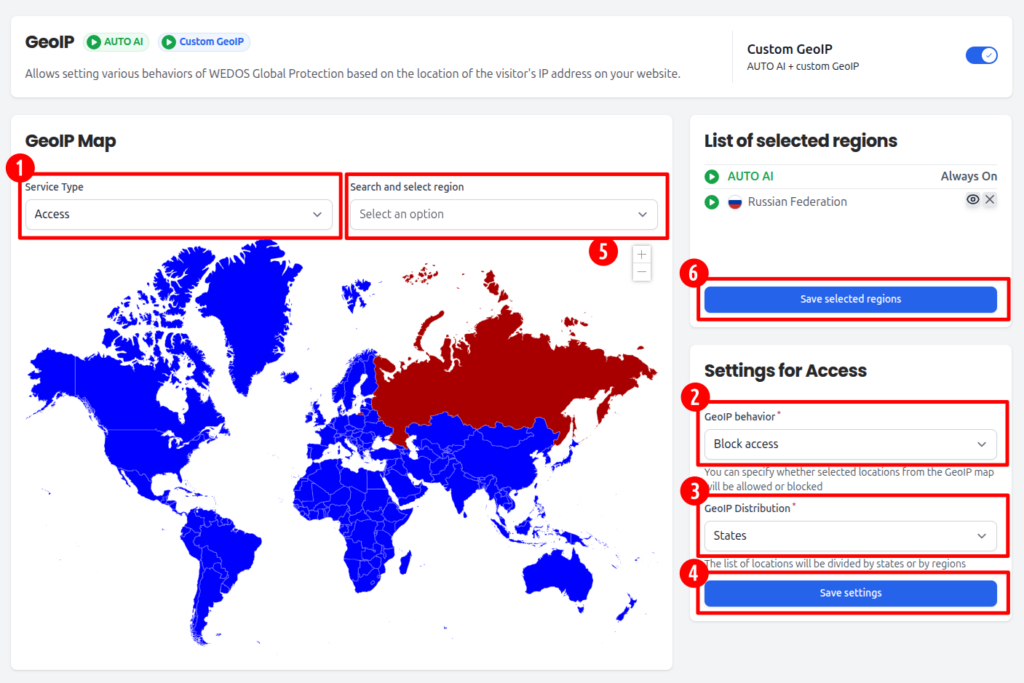
To allow access by GeoIP location:
- Select Access as the Service Type.
- Select Allow access as the GeoIP behavior.
- Select either States or Continents under GeoIP Distribution depending on your needs.
- Click Save settings in the Setting for Access section.
- Select the states or continents to which you want to allow access by clicking on the region in the GeoIP Map or using the Search and select region dropdown.
- Click Save selected regions in the List of selected regions section.
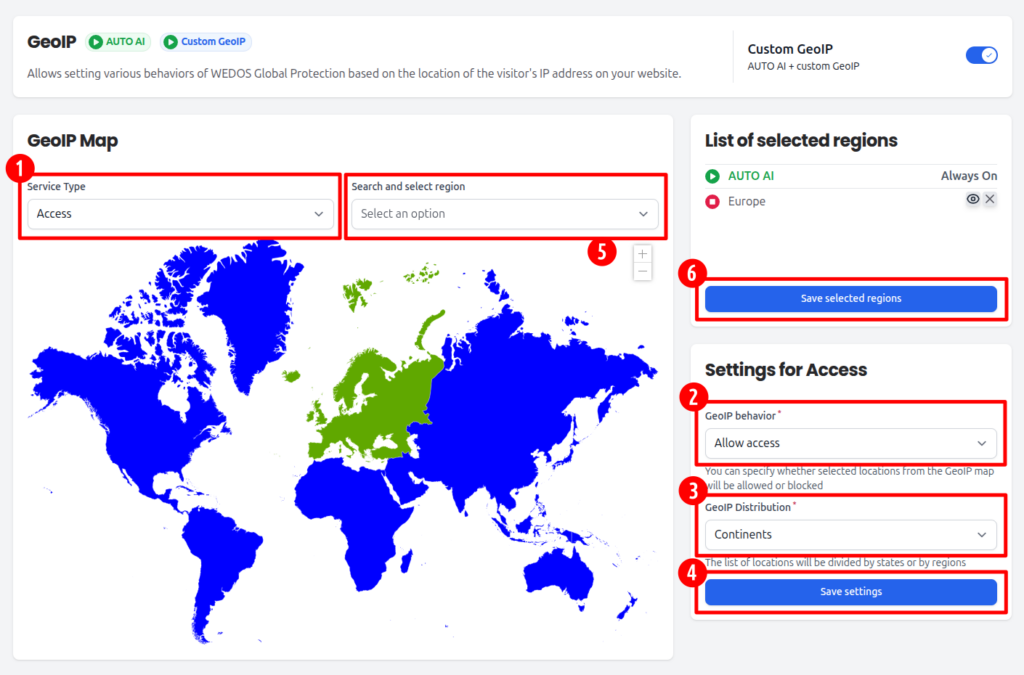
Conversely, if your website is constantly under attack from a certain continent, and there is no need for legitimate traffic to come from that continent, then you would block it using the Block access GeoIP behavior. By doing this you are denying traffic from the threatening GeoIP location before it reaches the web server while at the same time allowing legitimate traffic to come through from everywhere else.
To block access by GeoIP location, follow the same procedure as above but select Block access instead of Allow access and then select the states or continents to which you want to block access.
When blocking is not desirable, options such as Captcha challenges or Cookie-based verification can be enabled. This ensures that the website remains accessible to legitimate global users, while potential threats are challenged.
Captcha Service Type
The Captcha Service Type works by challenging visitors from selected states or continents. This adds a layer of protection by distinguishing between humans and robots.
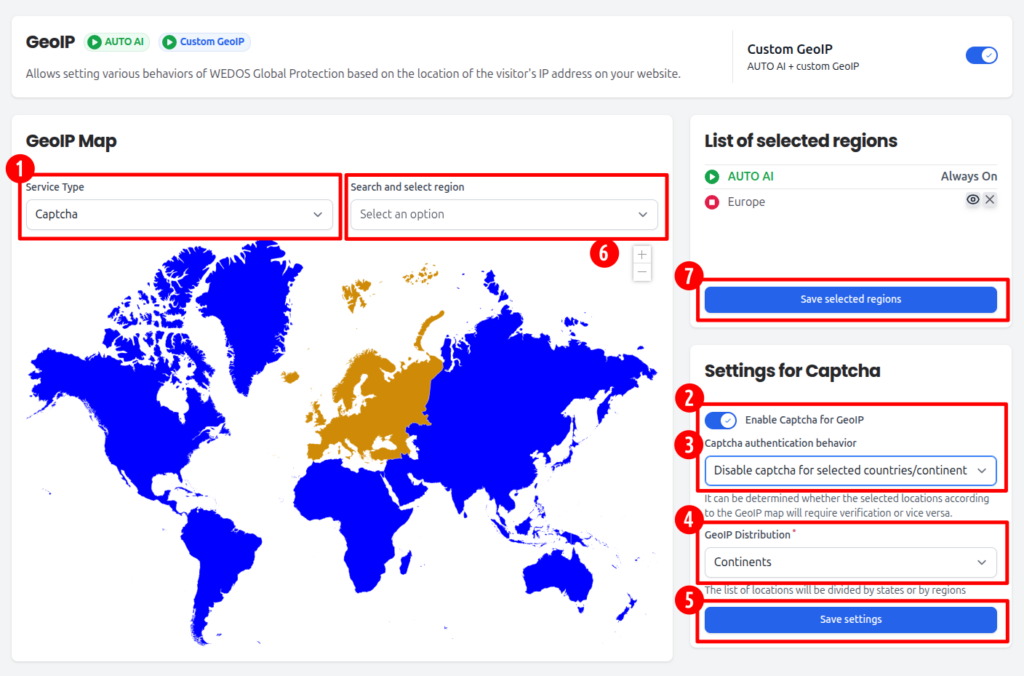
To enable the Captcha Service Type:
- Select Captcha as the Service Type.
- Toggle Enable Captcha for GeoIP in the Settings for Captcha section.
- Select the Captcha authentication behavior that best fits your needs:
- Disable captcha for selected countries/continents. Selected locations will not require captcha challenge. Unselected locations will require captcha challenge.
- Enable captcha for selected countries/continents. Selected locations will require captcha challenge. Unselected locations will not require captcha challenge.
- Select either States or Continents under GeoIP Distribution depending on your needs.
- Click Save settings in the Settings for Captcha section.
- Select the states or continents to which you want to enable/disable captcha by clicking on the region in the GeoIP Map or using the Search and select region dropdown.
- Click Save selected regions in the List of selected regions section.
Further captcha customization will be covered in another lesson.
Cookies Service Type
The Cookies Service Type works by using cookies-based verification of visitors from selected states or continents. This adds a layer of protection by distinguishing between humans and robots.
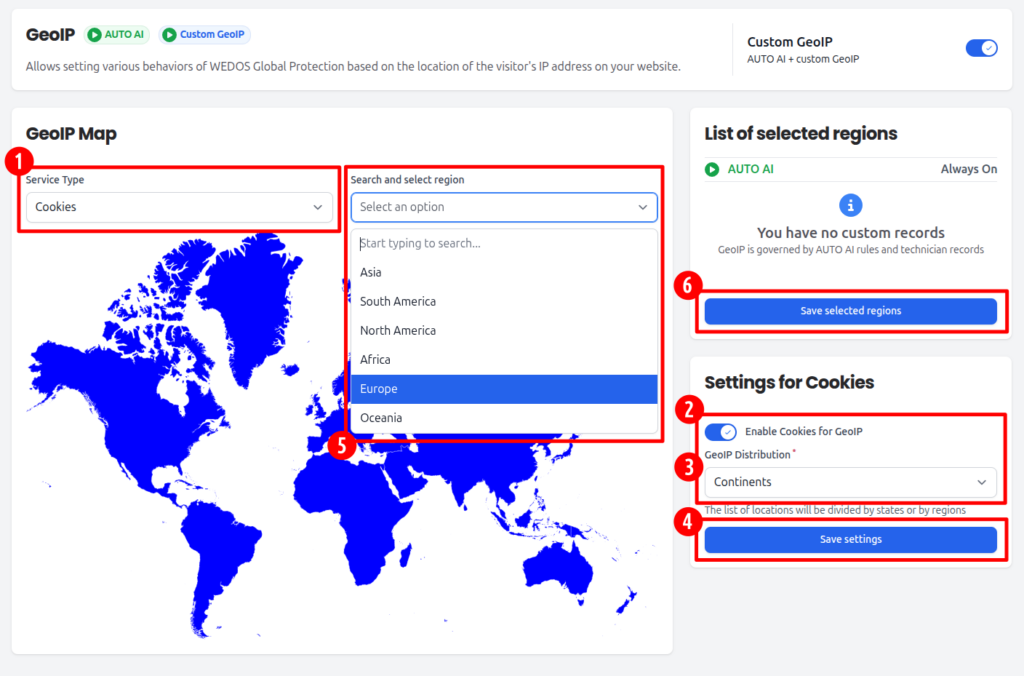
To enable the Cookies Service Type:
- Select Cookies as the Service Type.
- Toggle Enable Cookies for GeoIP in the Settings for Cookies section.
- Select either States or Continents under GeoIP Distribution depending on your needs.
- Click Save settings in the Setting for Cookies section.
- Select the states or continents to which you want to enable cookies by clicking on the region in the GeoIP Map or using the Search and select region dropdown.
- Click Save selected regions in the List of selected regions section.
Further cookies customization will be covered in another lesson.
Using GeoIP During Active Attacks
GeoIP filtering is especially valuable during emergency situations, such as large-scale or rapidly spreading attacks.
By temporarily restricting or blocking traffic from specific regions, WEDOS.protection can:
- Quickly reduce attack impact.
- Isolate suspicious traffic sources.
- Maintain service availability while deeper analysis is performed.
This makes GeoIP an effective tool for rapid response and containment.