
Example 1: DDoS Attack
Distributed Denial-of-Service (DDoS) attacks aim to overwhelm online services by flooding them with traffic from many sources at once. These sources are rarely individual users; most attacks originate from botnets—large collections of compromised devices such as PCs, servers, and IoT equipment—often spread across countries and networks. Because the traffic comes from thousands or millions of IP addresses, blocking a single source is ineffective.
To defend against this, it is essential to understand where the traffic comes from and what it looks like. Details such as the source IP or ASN help identify suspicious networks, while the User Agent reveals whether requests resemble real browsers or automated tools. Target URLs show which resources are being abused and how the attack is structured.
Identifying the Attack
Most of the time, DDoS attacks are identified and mitigated by WEDOS.protection with very little to no impact on the target website or server performance. Malicious L3/L4 traffic is scrubbed entirely while L7 requests blocked by WAF or rate limiting appear in logs.
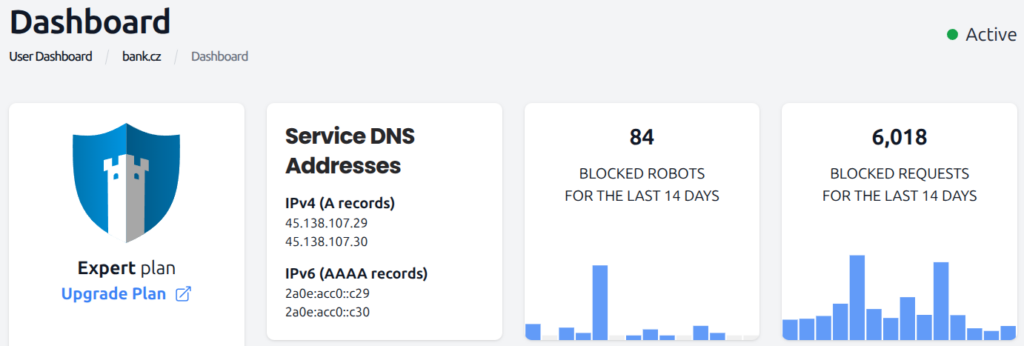
A website, unexpectedly slowing down considerably, or using up a lot more server resources than normal, might be a sign of a DDoS attack. To investigate, check unfiltered traffic in Grafana.
First, if you are using WEDOS.protection for multiple sites, select all relevant Request Hosts. Make sure to include all subdomains, such as www. This makes sure that your data is not skewed by traffic directed to other sites or servers with different parameters.
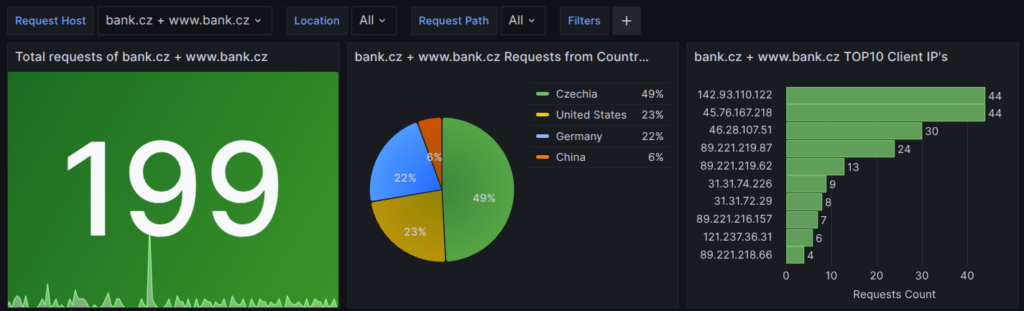
Next, check for traffic anomalies among requests which are left unblocked. This includes the following graphs:
- Requests from Countries. If your service is intended mostly for a domestic audience, a high percentage of traffic from other countries is suspicious. For global audiences, check out other metrics for better insight.
- TOP10 Client IPs. While DDoS attacks rarely originate from a single IP, a bot or service may be trying to abuse your web server.
- (All) Traffic in Location. Major spikes of normal traffic in this chart may indicate an attack. In the following table, you can investigate individual requests in detail.
- TOP10 URLs. Any frequently accessed resource is listed here. DDoS attacks usually do not target a single resource, but a frequently accessed URL might signal a brute-force attack instead.
- TOP10 User Agents and ASN Report. These charts are similar to Requests from Countries, but allow you to identify suspicious User Agents or ASNs.
Example
Let us examine a specific log file for the (www.)bank.cz domain.
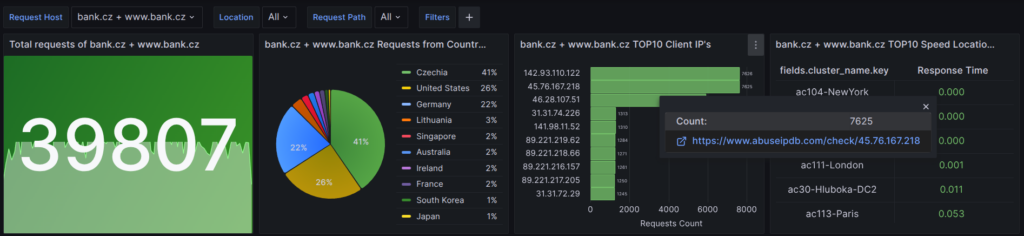
For a Czech service, we expect a high percentage of traffic from Czechia. Traffic from the United States and Germany is suspicious.
As for the TOP10 Client IPs, we know that the 3rd IP from the top, 46.28.107.51, is our monitoring service. We can check the other two using the integrated link to abusedip.com.
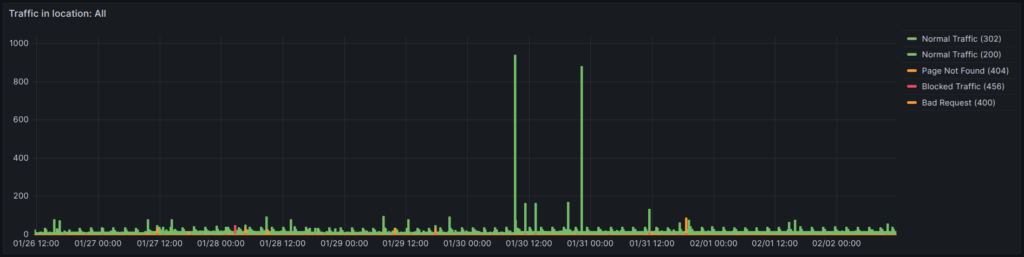
In the traffic plot, we see two major spikes up to 1,000 requests from a normal of 10 or so. An isolated spike of normal traffic typically means the attack was automatically eliminated by WEDOS.protection at the L3/L4 level. Ongoing high traffic would require manual intervention.
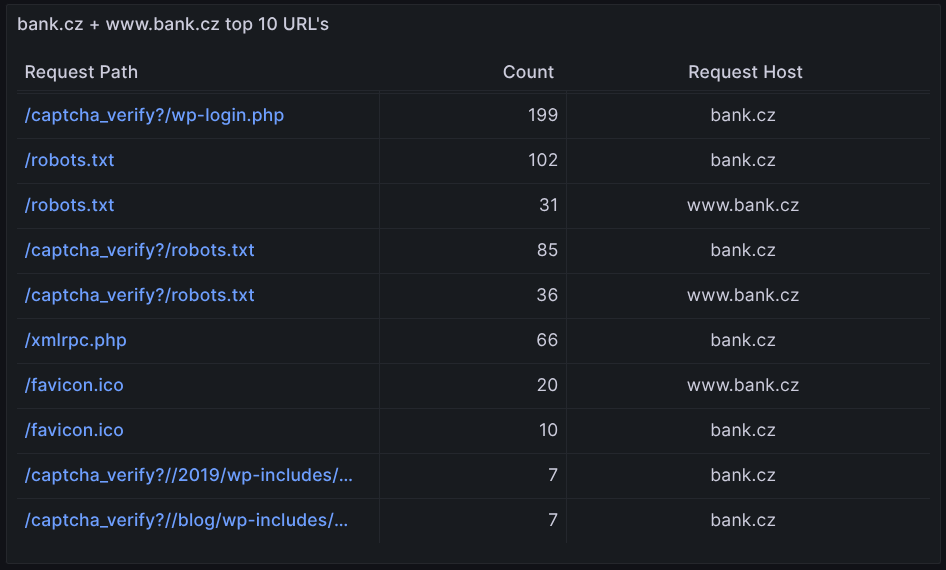
Among the TOP10 URLs, we notice both wp-login.php and xmlrpc.php, both popular brute-force attack targets. However, the Count numbers are low, compared to the traffic numbers from the previous chart. It is therefore unlikely that such an attack was behind the traffic spikes.
Conclusion: At this point, we see that there are currently no DDoS attacks going through WEDOS.protection. All suspicious activity was eliminated automatically. We should still investigate the IP addresses in the TOP10, and decide whether they are legitimate traffic or not.
Manual Attack Mitigation
The actions to take during an attack depend on the analysis results:
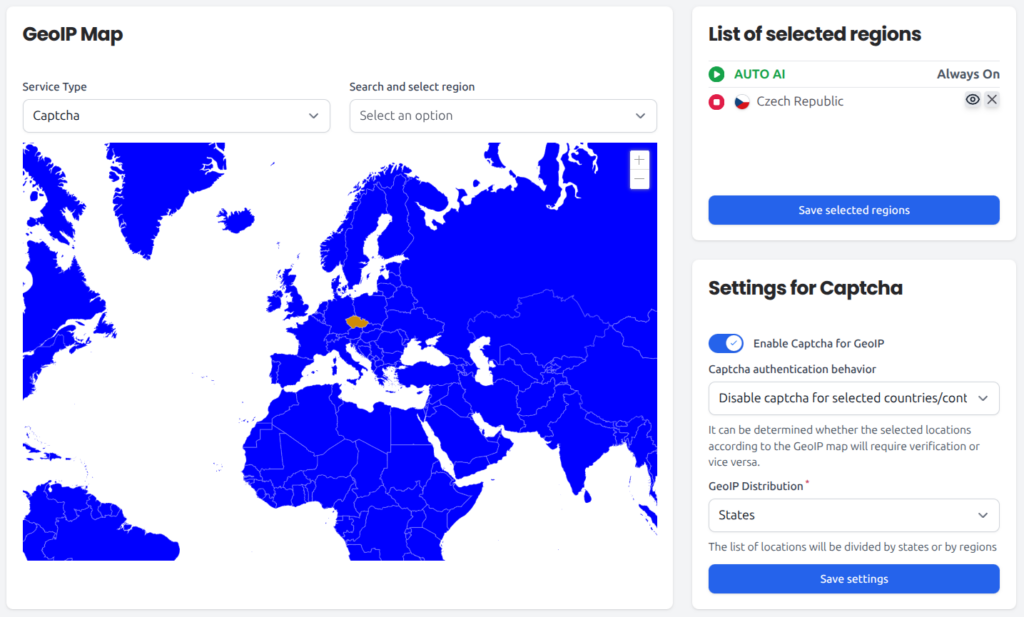
- Requests from Countries. If you suspect one or more countries are contributing to problematic traffic, set up GeoIP and either block those countries entirely, or set up Captcha or Cookies to still let human visitors access your site, at the cost of minor inconvenience.
- TOP10 Client IPs. One or several problematic IPs can be easily added to Filters and blocked at L3/L4. Unlike GeoIP, Filters do not let you enable Captcha or Cookies.
- TOP10 URLs. If a specific resource is under attack, use a URL filter to block outside access to that resource. Your own system can still access it normally.
- TOP10 User Agents and ASN Report. Sometimes, you may find suspicious User Agents or ASNs, which can also be blocked via Filters. Investigating these, however, is challenging, as User Agents can be spoofed (faked) and ASNs tend to be large-scale and highly complex.
- (All) Traffic in Location. Use this to monitor the effectiveness of the adjustments you make. You want the amount of Normal traffic to return to its usual values, or perhaps slightly below – some protective measures you take may affect legitimate traffic (see Resolution, below).
Example
Based on our previous examination, for our (www.)bank.cz domain, we might want to:
- Restrict access outside Czechia by setting up GeoIP Captcha for all other countries.
- Set up Filters to preventatively block unknown IP addresses with high volumes of traffic. If we are the only people accessing
wp-login.php, we can block this file while we are not actively using it.
Resolution
DDoS attacks are expensive, but they rarely last long, especially if they fail to achieve their goal of disrupting a service. Once you see the website traffic going back to normal, wait a couple minutes, and revert the changes you have made in response to the attack, unless you decide to keep blocking that traffic under normal circumstances.